Make a circle profile picture
Drop a photo, position the circle over your face, add a ring if you want one, and download a PNG with a transparent background. Made for the places that do not crop for you: email signatures, slides, websites, forum avatars, Discord, stream overlays. Up to 2048 pixels, free, nothing uploaded.
Circle, ring, transparent
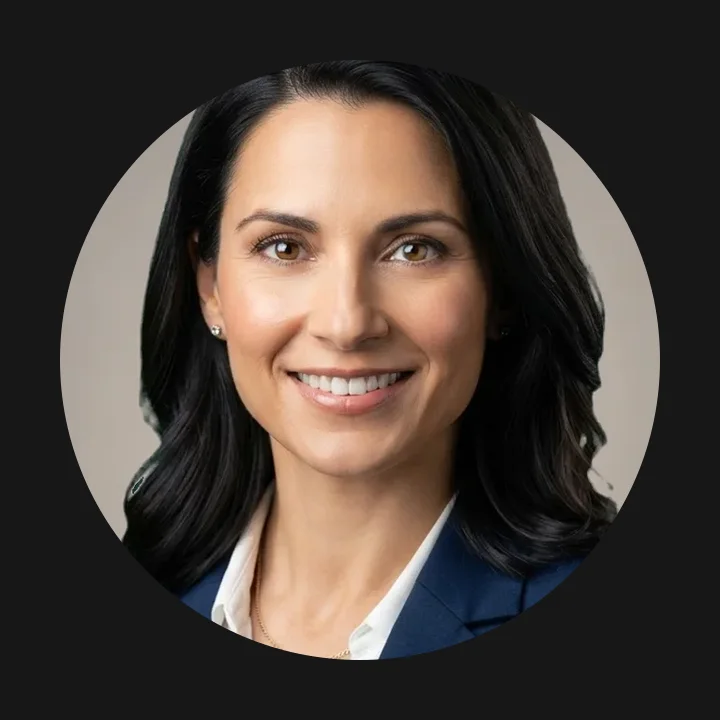
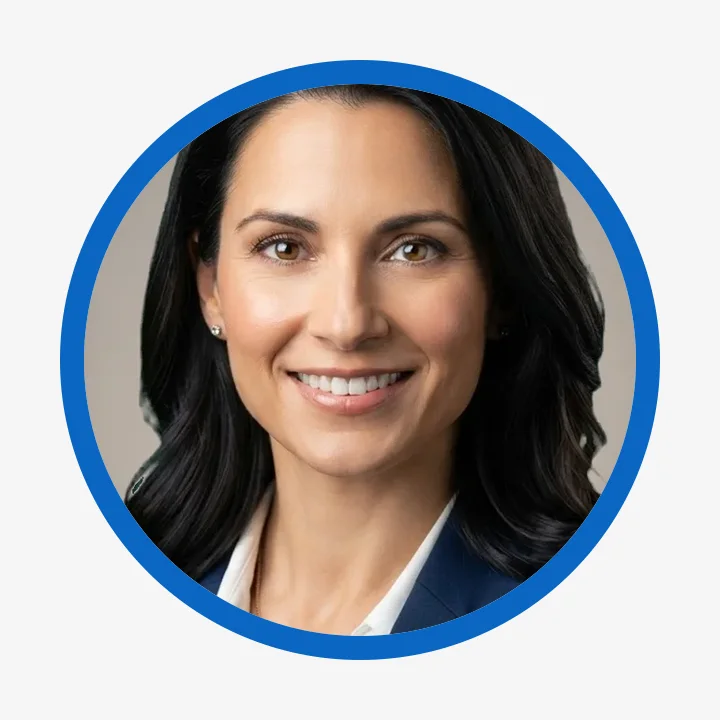
Three exports from one photo: plain circle, white ring for dark backgrounds, brand-color ring for a team page.

About the circle profile picture maker
Most social networks crop your profile picture into a circle themselves, so you upload a square and forget about it. Everywhere else, the square shows.
Where a square avatar looks wrong
An email signature, a speaker card, an About page, a PowerPoint slide, a Notion profile, a forum that still uses square avatars: those show whatever shape you give them. A square photo of a face inside a row of round icons looks unfinished.
This tool makes the round version once, properly.
How it works
You place a circle over the photo with the same drag-and-resize box as a normal cropper. The export is a PNG whose corners are actually transparent, not white, so it sits cleanly on any color of page or slide.
The two previews, 100 and 48 pixels, are there because a circle avatar is almost always seen small: if it reads at 48, it reads everywhere.
The ring
A white ring lifts the photo off dark backgrounds. A brand color ties a team's avatars together. A thin black ring gives a printed look. Ring width is a percentage of the diameter, so it scales with the export size.
Sizes and privacy
Sizes go from 512, enough for any avatar, to 2048 for a hero image or print. Nothing is uploaded, and the output has no watermark and no account attached.
If the photo itself needs work first, the headshot background changer swaps the backdrop and the LinkedIn photo resizer handles the platforms that want a square.
How it works
Drop your image
Drag and drop or click to browse. The file stays in your browser, nothing is uploaded anywhere.
Adjust the settings
Pick the options you need. The preview updates instantly so you see exactly what you will get.
Download
One click and the result saves to your device. Free, no watermark, no signup.
Tips for best results
Things that meaningfully improve the output.
Crop tighter than feels natural
A circle loses the corners, which is where shoulders and hair usually are. Frame from the top of the head to the collarbone and let the circle do the rest.
Use the ring for contrast, not decoration
A 3 to 5 percent white ring on a dark slide, or a dark ring on a white page, is enough. Above 8 percent the ring becomes the subject.
Export bigger than you need
1024 is a safe default. Platforms downscale cleanly; they never upscale cleanly. A 512 avatar stretched onto a 4K stream overlay will look soft.
PNG keeps the transparency, JPG does not
If you re-save the file somewhere as JPG, the transparent corners turn white. Keep the PNG as the master.
Fix the background first
A circle avatar is small, so a busy background turns into noise. Swap it for a plain color with the headshot background changer, then crop the circle here.
Need more than circle profile picture maker?
renza's AI tools remove backgrounds, erase objects, restore old photos and upscale to print quality. Free credits at signup, no credit card.
Create free account →Frequently asked questions
How do I make my profile picture a circle?
Drop the photo above, drag the circle over your face, choose a size and download the PNG. The area outside the circle is transparent, so the file is round wherever you place it.
Is the background really transparent?
Yes. The PNG has a real alpha channel outside the circle. On a dark page you see the dark page through the corners, not white squares.
Which size should I pick?
512 for chat apps and forums, 1024 for websites, slides and email signatures, 2048 if it will be shown large or printed. Bigger files are only bigger; they do not look worse.
Can I add a border or ring?
Yes. Pick a ring color and set the width from 1 to 12 percent of the diameter. Set it to none for a plain circle.
Does Instagram or LinkedIn need a circle file?
No. Those platforms crop a square into a circle themselves. Give them a square from the LinkedIn photo resizer. Use this tool for places that show the file as-is.
Is my photo uploaded anywhere?
No. Cropping, masking and the ring are drawn with the Canvas API in your browser. Nothing leaves your device.
Can I make a matching set for a team?
Yes. Agree on a ring color and width, send everyone the link, and each person exports their own. Same size, same ring, same look on the team page.