Change your headshot background
Upload a headshot or a good selfie, and the tool cuts you out and drops you onto a proper background: gray studio, navy, office window, bookshelf, brick, park. Twenty-five photographed backdrops and twelve studio colors, all free, no account, full resolution. Pick one before you upload if you already know the look you want.
Pick a background first if you like. You can change it after the cutout.
The same headshot on eight backgrounds
One photo, cut out once, dropped onto eight of the backdrops above. Nothing about the person changes; only what the background says about them does.
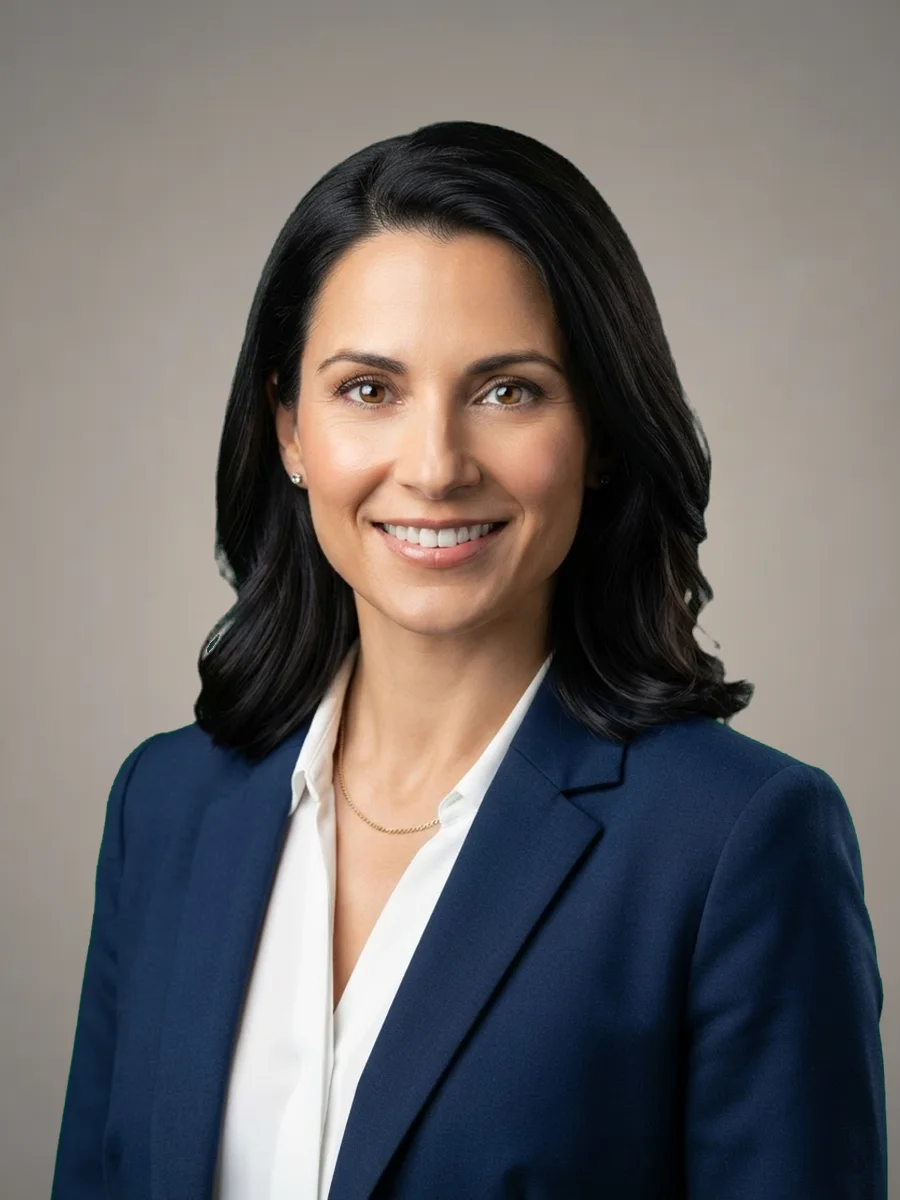
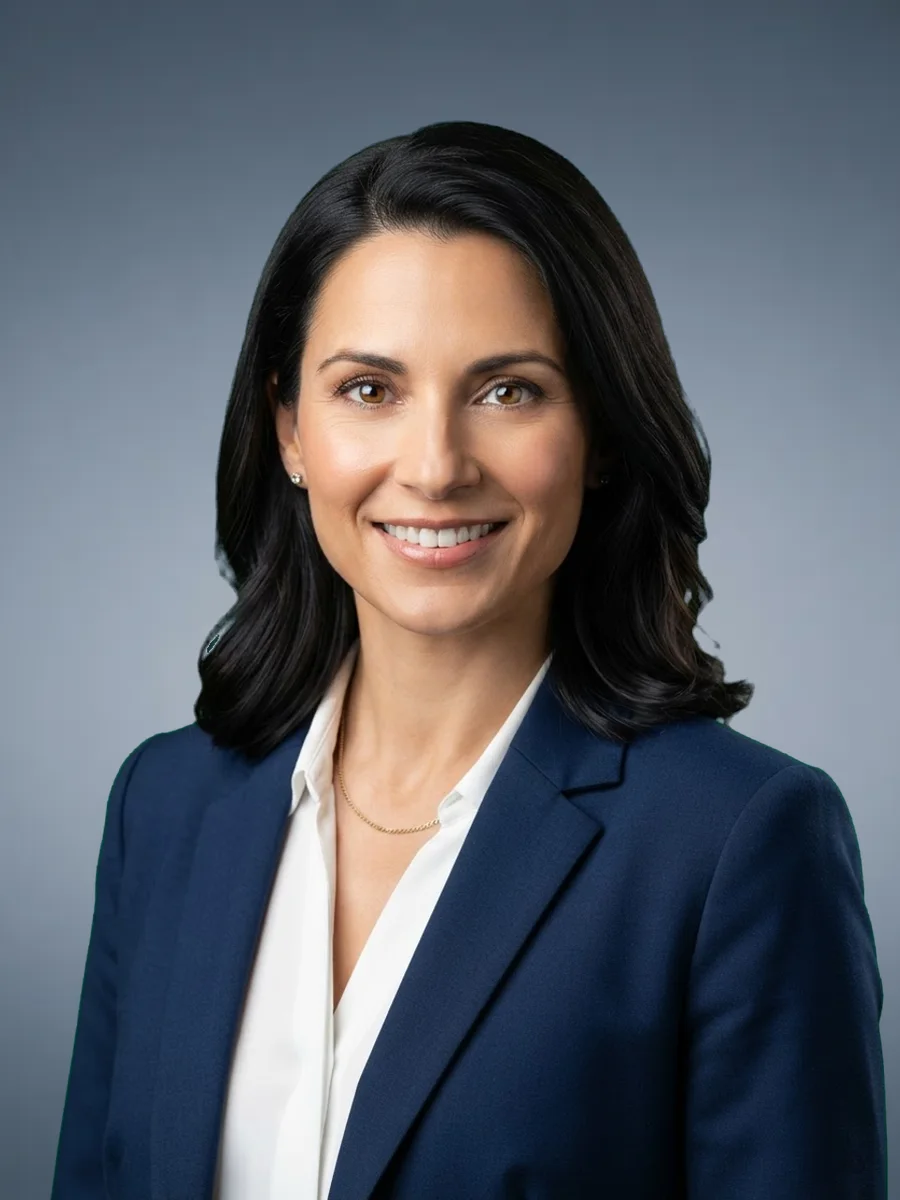
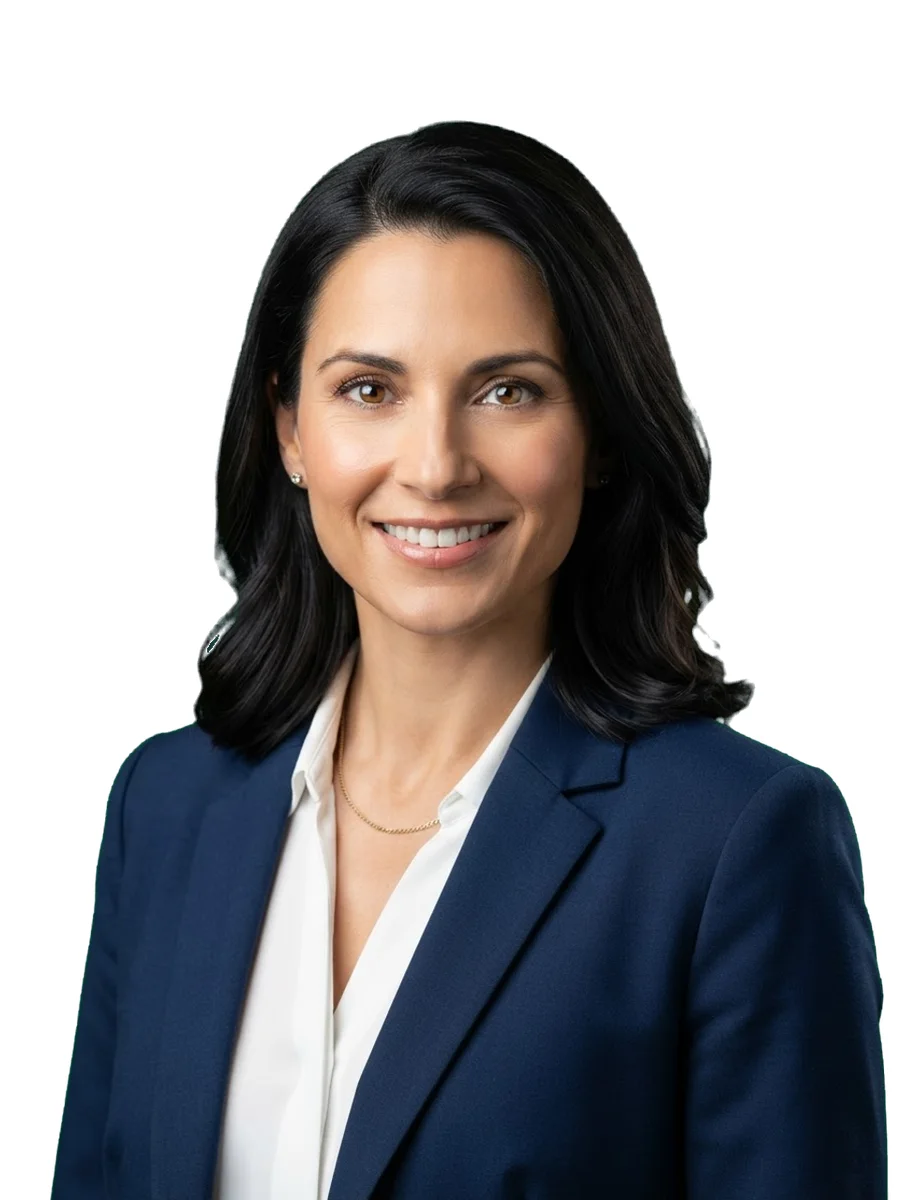


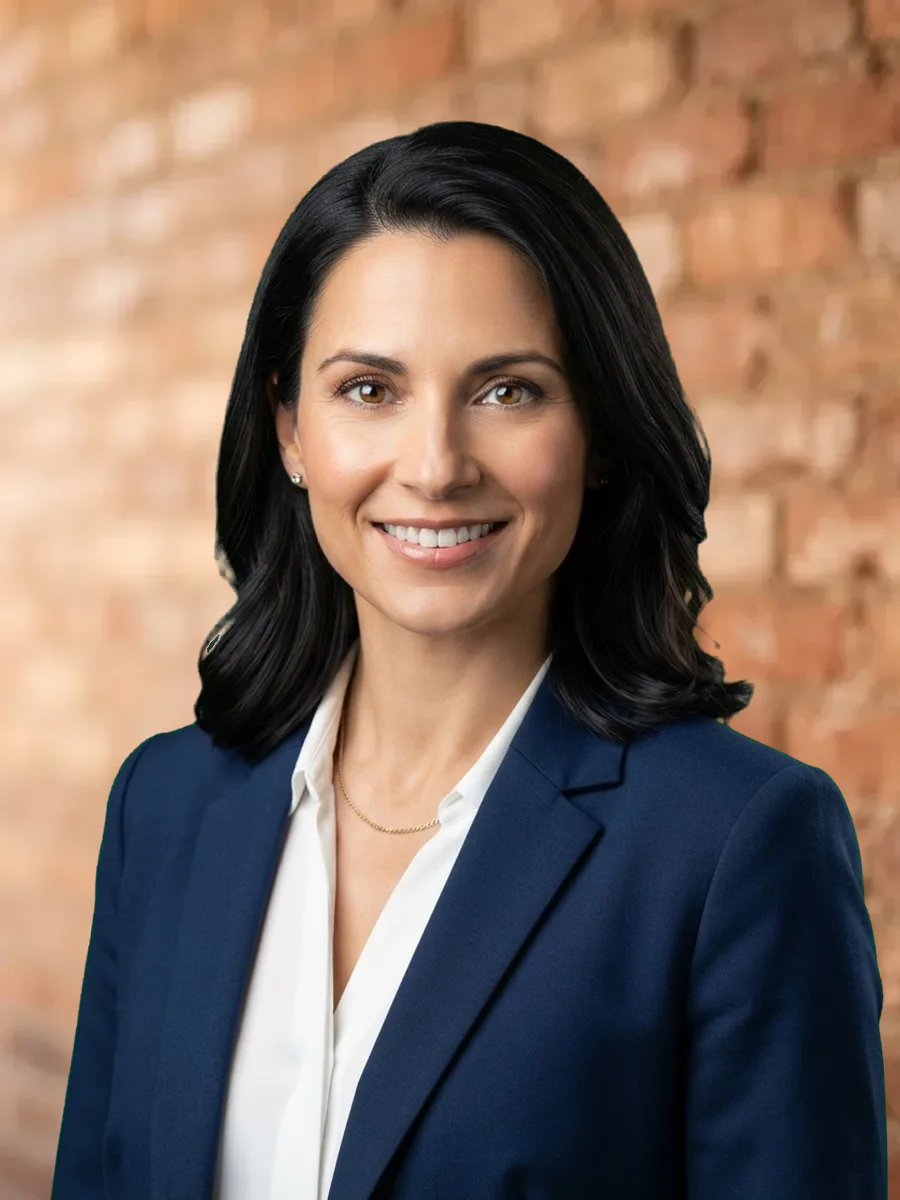
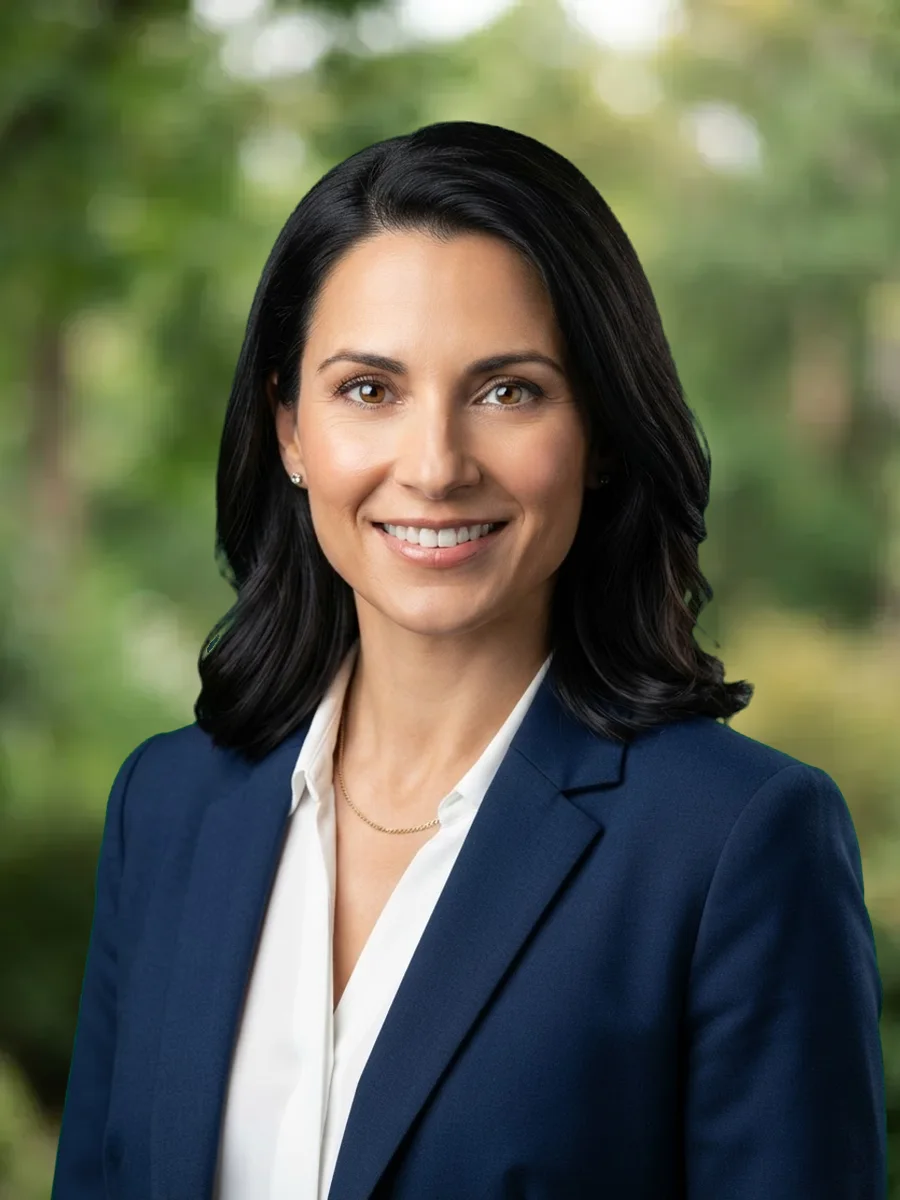

About the headshot background changer
The background is the part of a headshot that most people get wrong and the part that is easiest to fix. A phone photo against a bedroom door reads as a snapshot. The same face, same expression, same shirt against a soft gray gradient reads as a professional photo.
What the background says about you
The background does two jobs at once: it removes everything that is not you, and it tells the viewer what kind of professional you are.
A plain gray or slate blue says corporate. A blurred office says employed and senior. A bookshelf says advisor. Green foliage says approachable. This tool gives you all of those without a studio.
How the cutout works
It uses the same cutout as renza's background remover, BiRefNet, which handles hair, glasses and shoulders cleanly. Then it composites you over the backdrop you choose at the original resolution of your photo.
There is no re-generation of your face and no AI touching your features: the pixels of you are the pixels you uploaded.
How the backdrops were made
They are photographed the way a headshot background should be, with an 85mm look and the focus falling off so nothing behind you competes with your eyes. Every one of them leaves the center clear for a head and shoulders.
Solid colors are there for the platforms that ask for them: white for ID and residency photos, light gray for LinkedIn, LinkedIn blue if you want the brand match.
What you get
The result downloads as JPG for uploading anywhere, or PNG if you plan to keep editing.
If you want the new scene's light to fall on your face, which a flat swap cannot do, the AI background changer re-renders the whole picture and is one click away from the result.
How it works
Drop your image
Drag and drop or click to browse. The file stays in your browser, nothing is uploaded anywhere.
Adjust the settings
Pick the options you need. The preview updates instantly so you see exactly what you will get.
Download
One click and the result saves to your device. Free, no watermark, no signup.
Tips for best results
Things that meaningfully improve the output.
Match the background to the outfit, not the other way around
A navy jacket on the navy backdrop disappears at the shoulders. Dark clothes want gray, light gray, beige or an office scene. Light shirts want charcoal, navy, slate or teal. White shirt on white is the one combination that never works.
Studio gray is the safe answer
If you are choosing for LinkedIn and nothing else, pick studio gray or slate blue. Recruiters see hundreds of these a day, and the ones that stand out for the wrong reason are the busy ones, not the plain ones.
Leave some air above your head
The tool keeps your framing exactly as uploaded. If the top of your head touches the edge, the result will too. Take the photo with a hand of space above and re-crop with the LinkedIn resizer afterwards.
Check the edges at full size
Hair against a bright window is the hardest case for any cutout. Zoom in on the download. If flyaway strands look chopped, the AI background changer handles that case better because it re-renders instead of masking.
One background for the whole team
Company pages look tidy when every headshot shares a backdrop. Pick one here, send the link, and everyone can do their own in a minute. No credits, no account.
Need more than headshot background changer?
renza's AI tools remove backgrounds, erase objects, restore old photos and upscale to print quality. Free credits at signup, no credit card.
Create free account →Frequently asked questions
What is the best background for a professional headshot?
A plain, softly lit mid-gray or slate blue. It works for every industry, every skin tone and every outfit, and it is what the majority of corporate headshots use. Choose a blurred office or bookshelf when you want the photo to say something specific about your role.
What color background is best for LinkedIn?
Light gray, mid gray or slate blue. LinkedIn shows the photo inside a small circle over a white page and a blue banner, so a light neutral background separates your face from the interface. Avoid pure white, which merges with the page, and avoid busy scenes, which turn into noise at 48 pixels.
Is the cutout done with AI?
Yes. The person is separated from the original background with BiRefNet, a segmentation model, on renza's server, or with a compact in-browser model if the server is busy. The compositing onto the new background is plain canvas work in your browser. Your face is never regenerated.
Does it keep the original resolution?
Yes. The output has exactly the pixel size of the photo you uploaded. A 12-megapixel phone photo comes back as 12 megapixels.
Why does the result look pasted on?
Because a flat swap keeps the light from your original photo. If you were lit by a window on the left and the backdrop is lit from the right, the eye notices. The fix is either to pick a backdrop with similar light or to use the AI background changer, which renders the scene and the light together.
Can I use a solid color instead of a photo?
Yes. Twelve studio colors are built in, including white for ID-style photos, light gray for LinkedIn and LinkedIn blue. The color fills the whole frame behind the cutout.
Is it free and can I use it for work?
Free, no watermark, no account. The output is yours, including for commercial and company use. There is a generous daily limit per visitor on the server cutout to keep bots away; the in-browser model has no limit.