Convert your photo into a Pixar 3D character
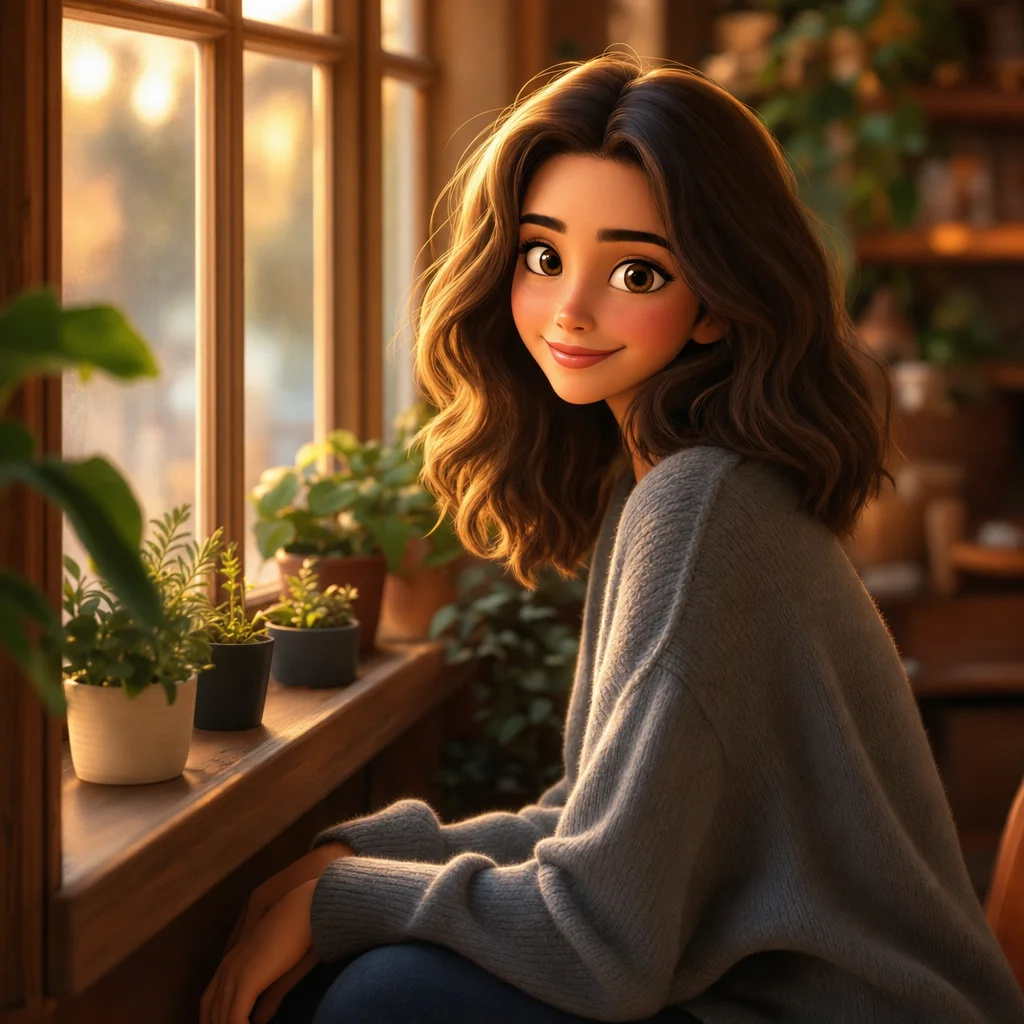
Upload your photo and renza converts it into a 3D Pixar-style character. Big expressive eyes, soft 3D shading, plush features, the look from Toy Story, Up, Inside Out. Great for avatars, gifts, t-shirts, or just for fun.

No credit card. Free credits at signup.
About this transformation
Pixar-style portrait conversion is one of the most popular 'turn me into a character' transforms, and most generic AI image apps do it badly, they end up with a vaguely 3D-looking face that misses the Pixar warmth. The trick is the lighting and the subsurface scattering on skin, which Pixar invests heavily in. Renza uses Nano Banana for Pixar conversion because it captures both the geometry exaggeration and the soft skin lighting that defines the style. You can also try Nano Banana Pro (slightly higher quality) or GPT Image 2 (more illustrative) from the editor. The result looks like an actual character design from a Pixar pitch deck, usable as a profile picture, animation reference, kids' room art, or as a gift for someone who loves the films.
How to turn a photo into Pixar art
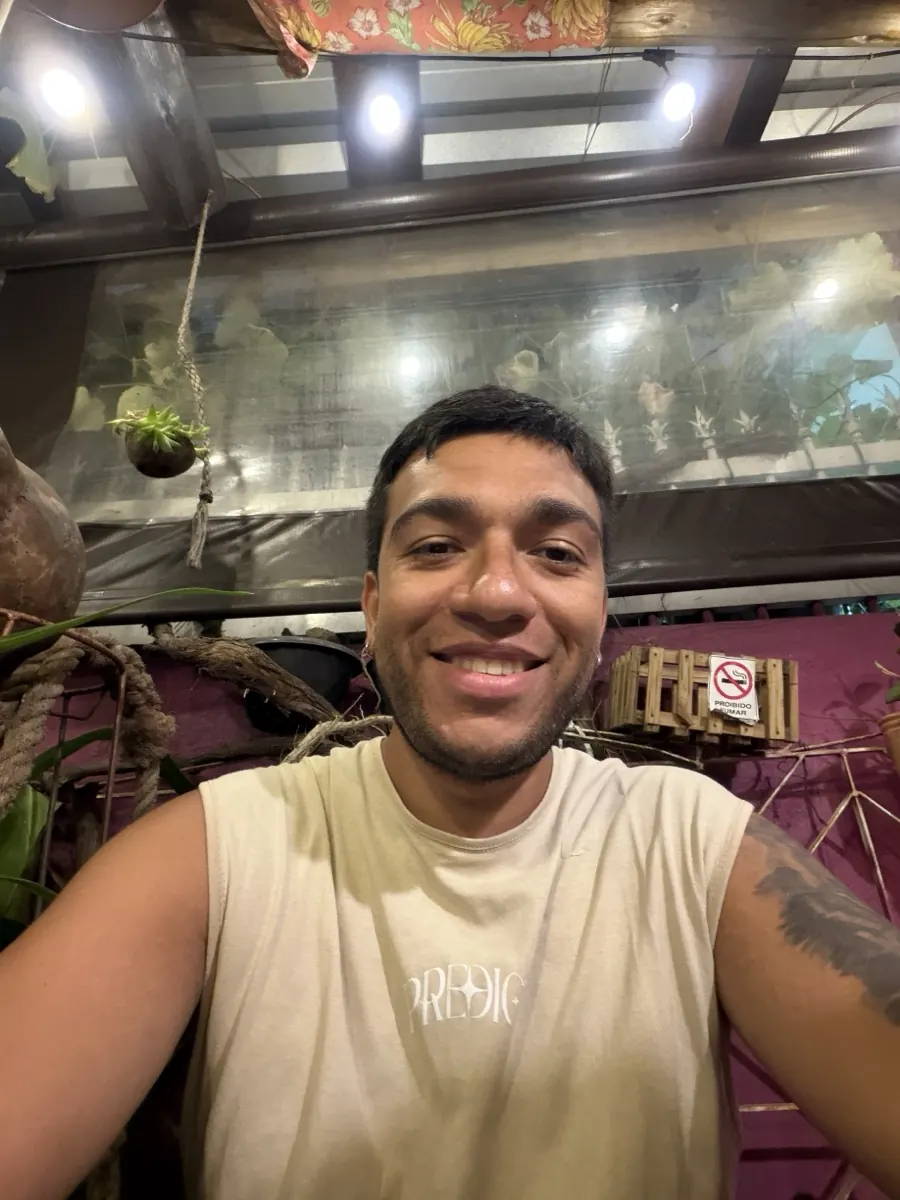
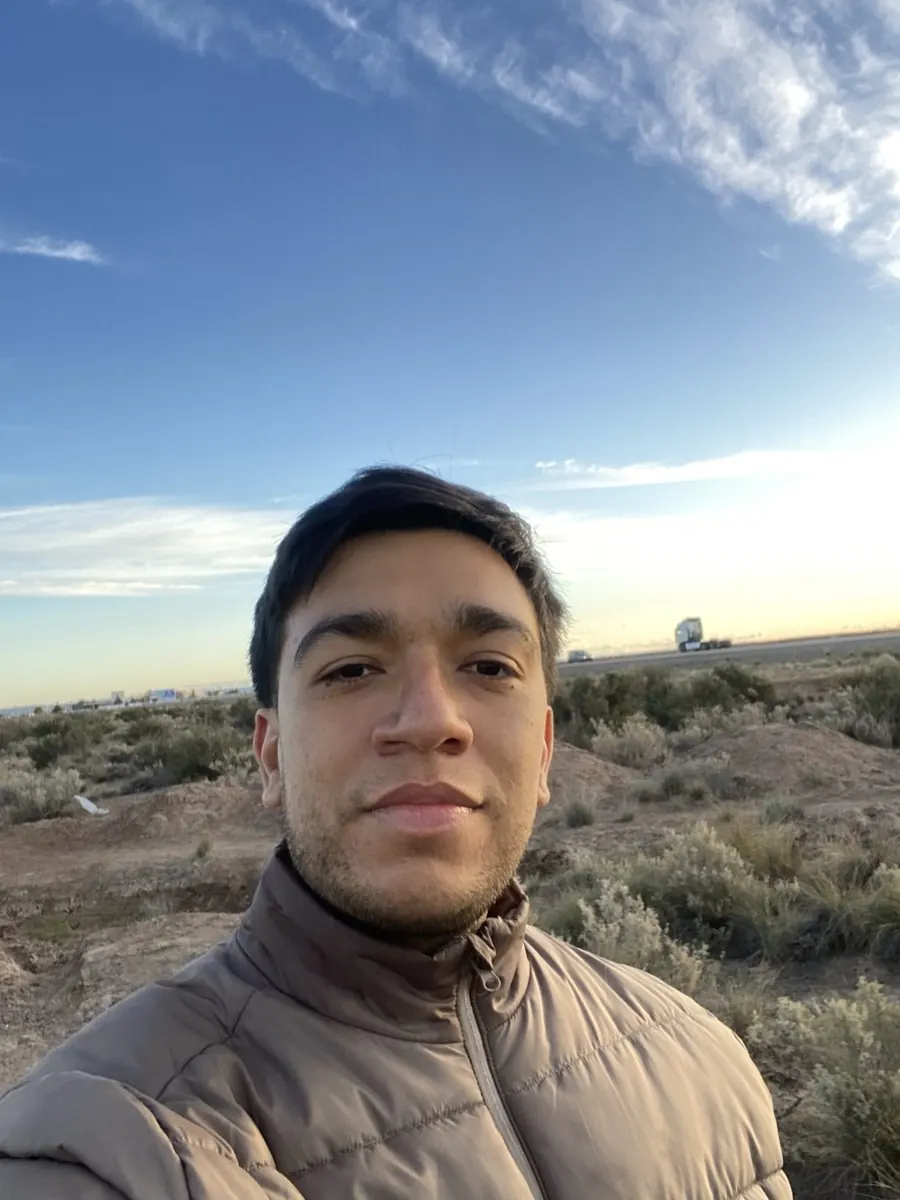
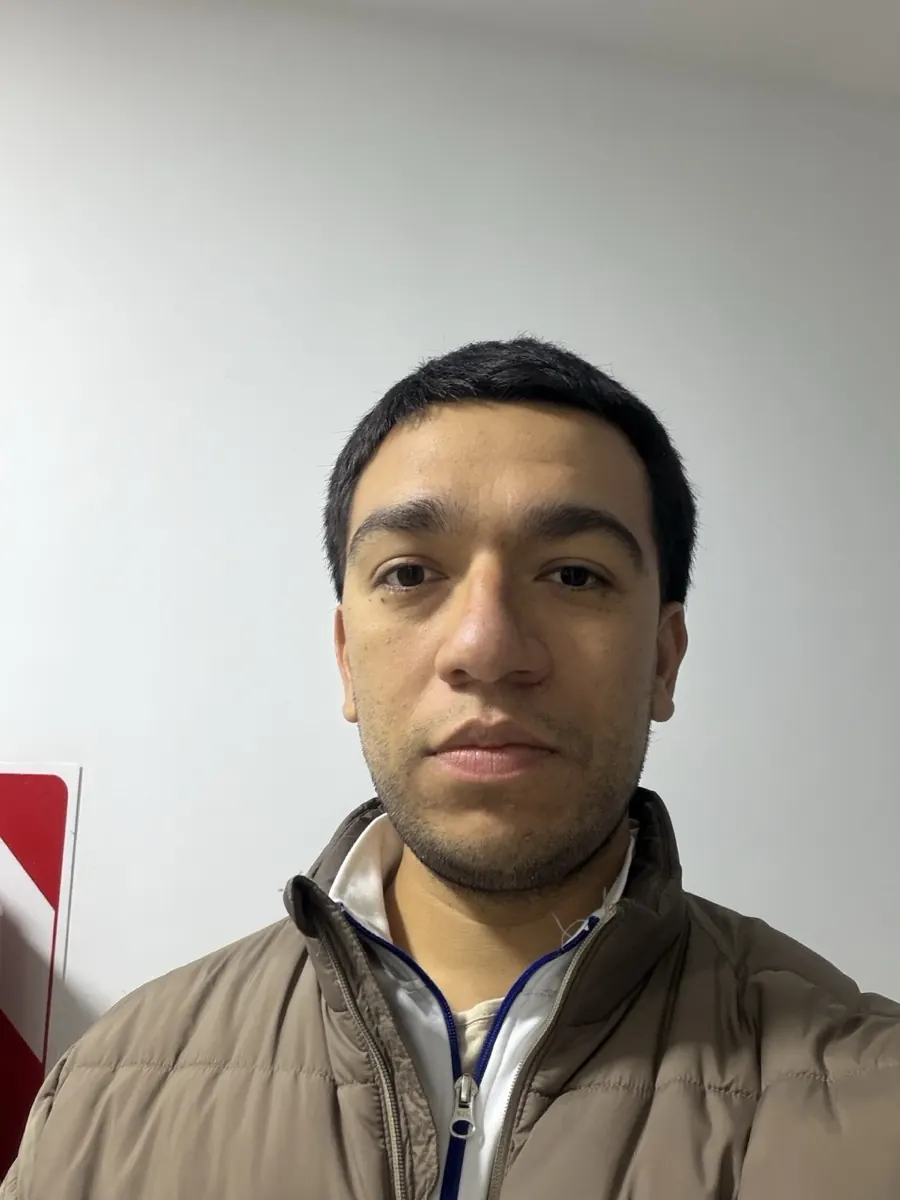
Upload your photo, the Pixar preset is pre-filled, result in 5 to 15 seconds.
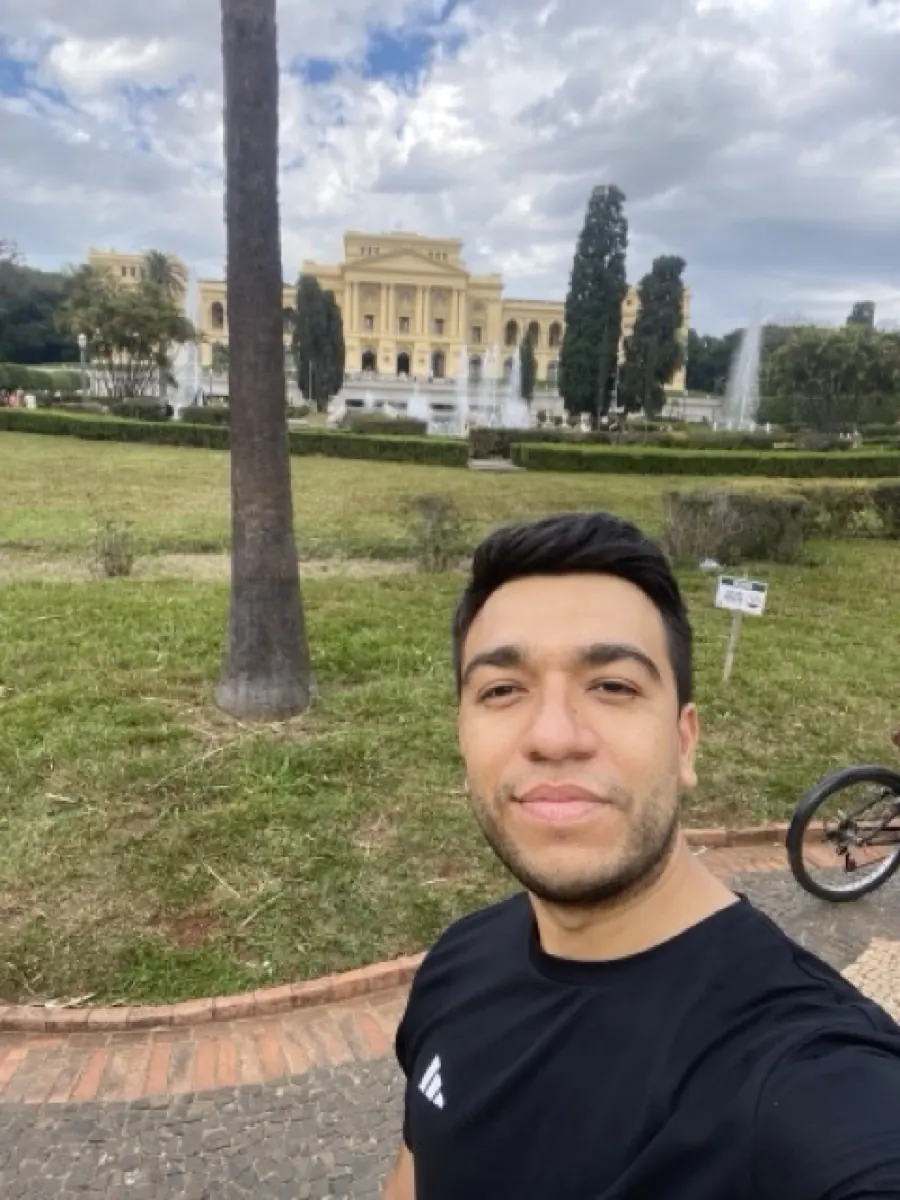
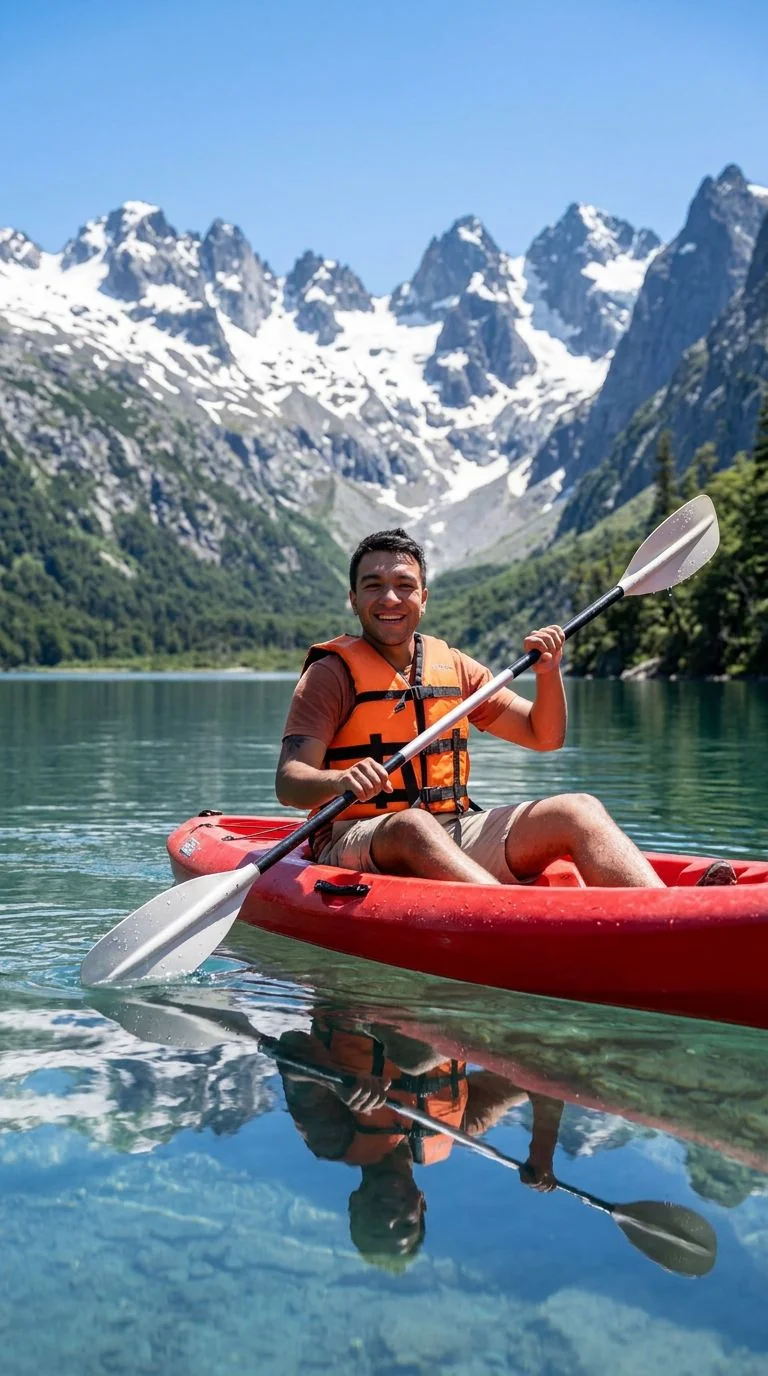
Tips for the best Pixar result
Small things that meaningfully improve the output.
Bright, evenly-lit photos work best
Pixar lighting is soft and from above. Photos with hard shadows convert less cleanly because the model has to fight your existing lighting.
Smile or expressive face = better result
Pixar characters are emotive. Neutral expressions can come out flat. A smile, raised brow, or any clear emotion gives the model more to work with.
Mention a specific Pixar film
Adding "Inside Out style" or "Up character design" can bias the output toward that film's aesthetic. Each Pixar film has subtle differences.
Try Nano Banana Pro for hero shots
If you want this as a poster or high-quality print, switch to Nano Banana Pro in the editor, same prompt, higher fidelity, costs a bit more.
Try photo to pixar on your photo
Upload any image, get your Pixar version in seconds.
Open the editor →No credit card. Free credits at signup.
Frequently asked questions
Will I still look like myself?
Yes. Nano Banana preserves identity through the Pixar transform well. The face will look stylized, bigger eyes, softer jaw, plumper skin, but recognisably you.
Can I use the result commercially?
You own the output. Avoid prompts that try to reproduce specific Pixar characters (Woody, Buzz, etc.) for commercial work to be safe, but a generic Pixar-style portrait of yourself is fine.
How long does it take?
5–15 seconds.
How much does it cost?
Free credits at signup. After, a Pixar conversion costs around 5 credits. Credit packs start at $4.99.
Does it work with pets?
Yes, and pet Pixar conversions look adorable. Same workflow, upload, click generate.