Pixel Art Illustration Generator
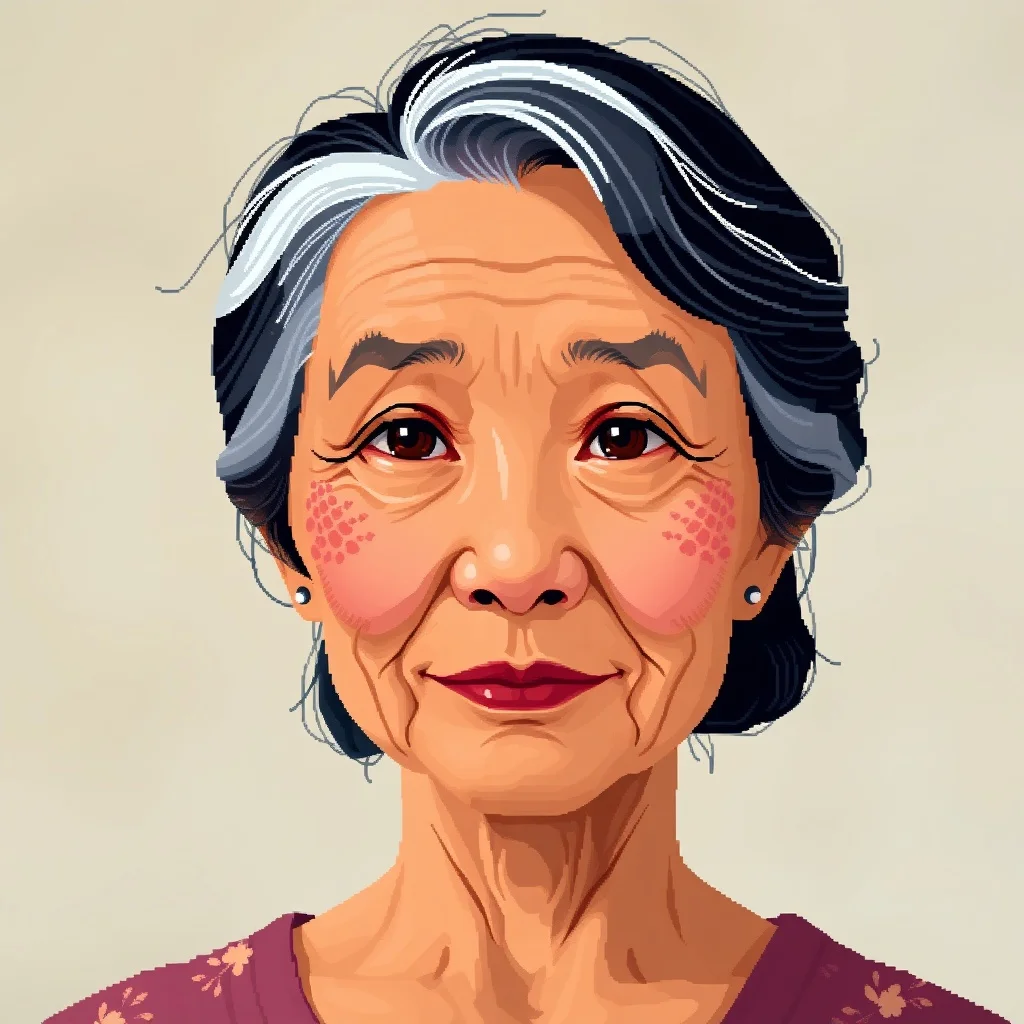
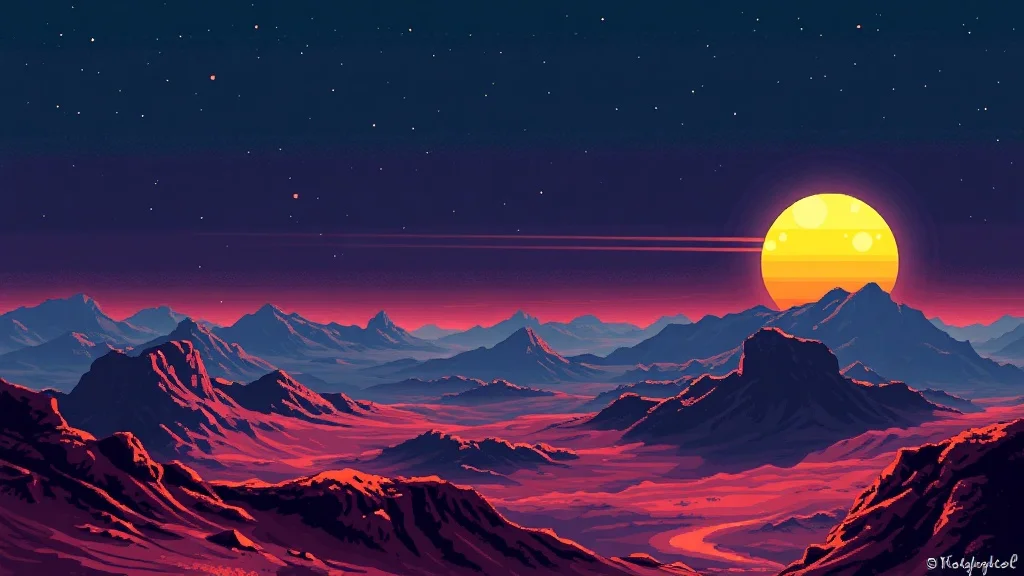
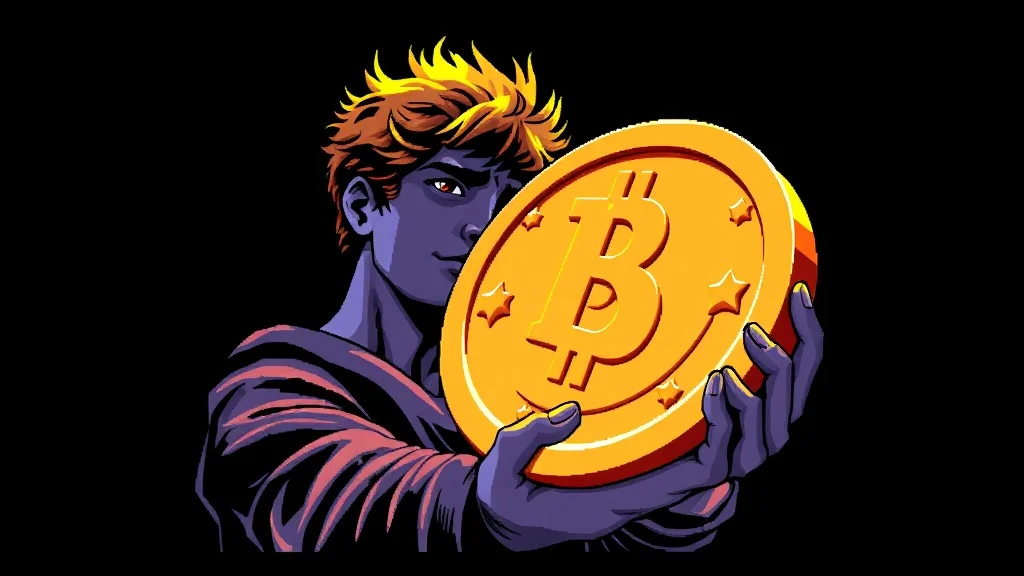
Want a illustration that genuinely reads as pixel art? Pixel art embraces the grid: every shape is built from visible square pixels, shaded with dithering, in a deliberately limited palette. renza applies that look from the first pixel, so you get visible pixel grid and limited retro palette, not a plain illustration with a filter dropped on top.
A strong illustration tells a small story at a glance, with clear figures, intentional composition, and a mood that matches the text beside it. A tight 16- to 32-color SNES-era palette. The look traces back to the 16-bit consoles of the early 1990s, and renza bakes it into a prompt tuned for pixel art illustrations before sending it to a high-fidelity image model. You get a result in a few seconds that you can refine or download, and every image is yours to keep. Match the mood to your surrounding copy, and keep a consistent style across a set so your blog or app feels cohesive.
- 3 free credits to start
- No credit card
- Commercial use, you own it
- No watermark
- Results in seconds
What defines the pixel art style
Pixel art embraces the grid: every shape is built from visible square pixels, shaded with dithering, in a deliberately limited palette.
A tight 16- to 32-color SNES-era palette. The look traces back to the 16-bit consoles of the early 1990s, and on a illustration it gives you a result that feels deliberate rather than generic.
Pro tip · Keep subjects simple and iconic, because fine detail gets lost the moment everything snaps to a grid.
- Visible pixel grid
- Limited retro palette
- Dithered shading
- Hard-edged sprites
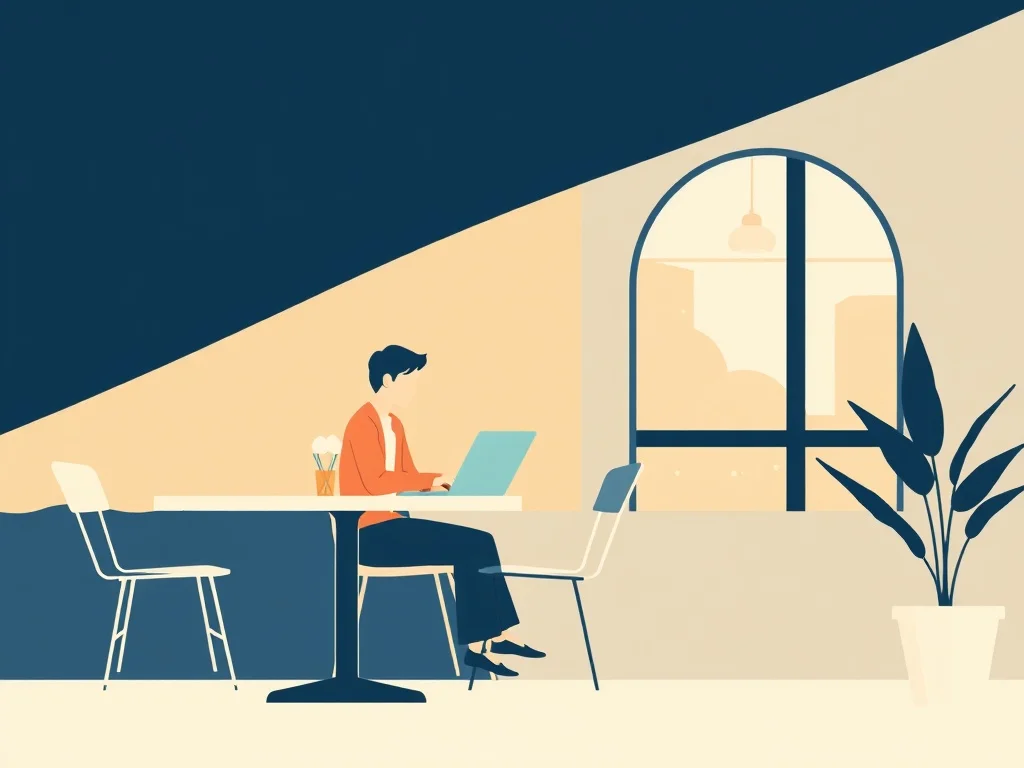
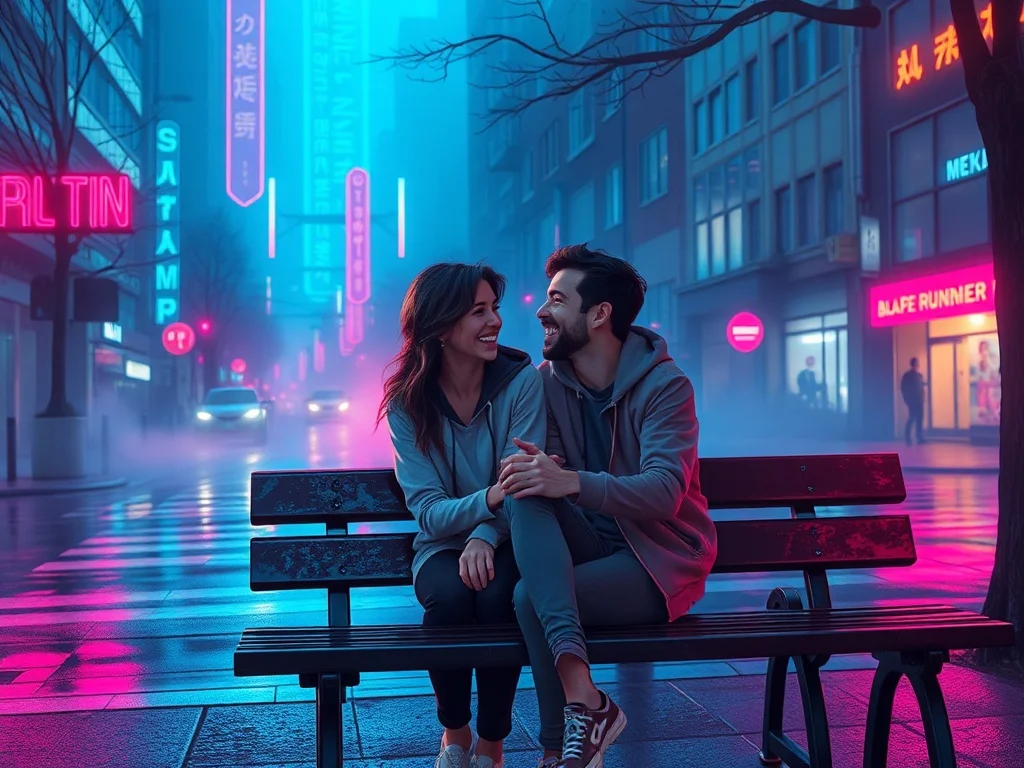
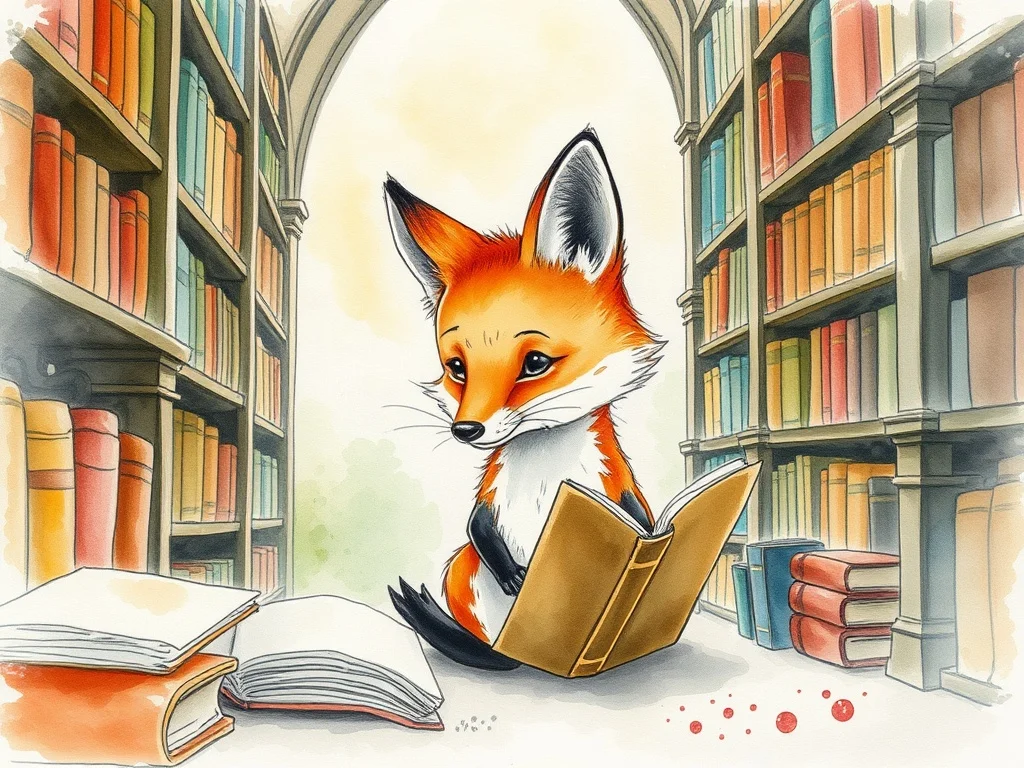
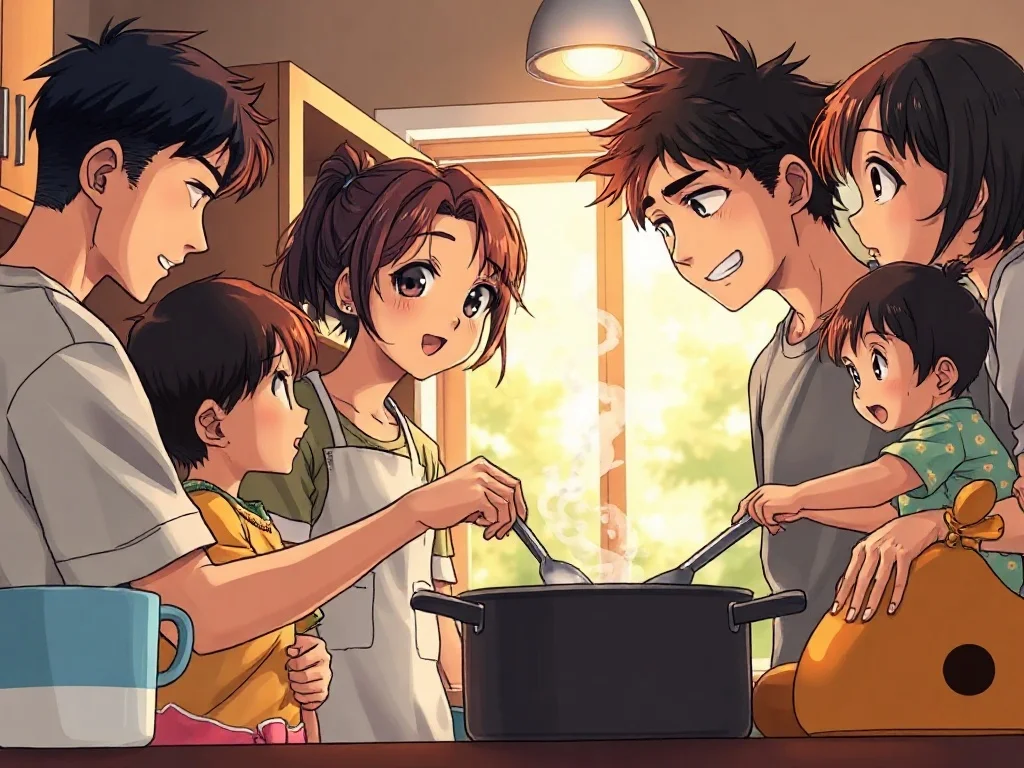
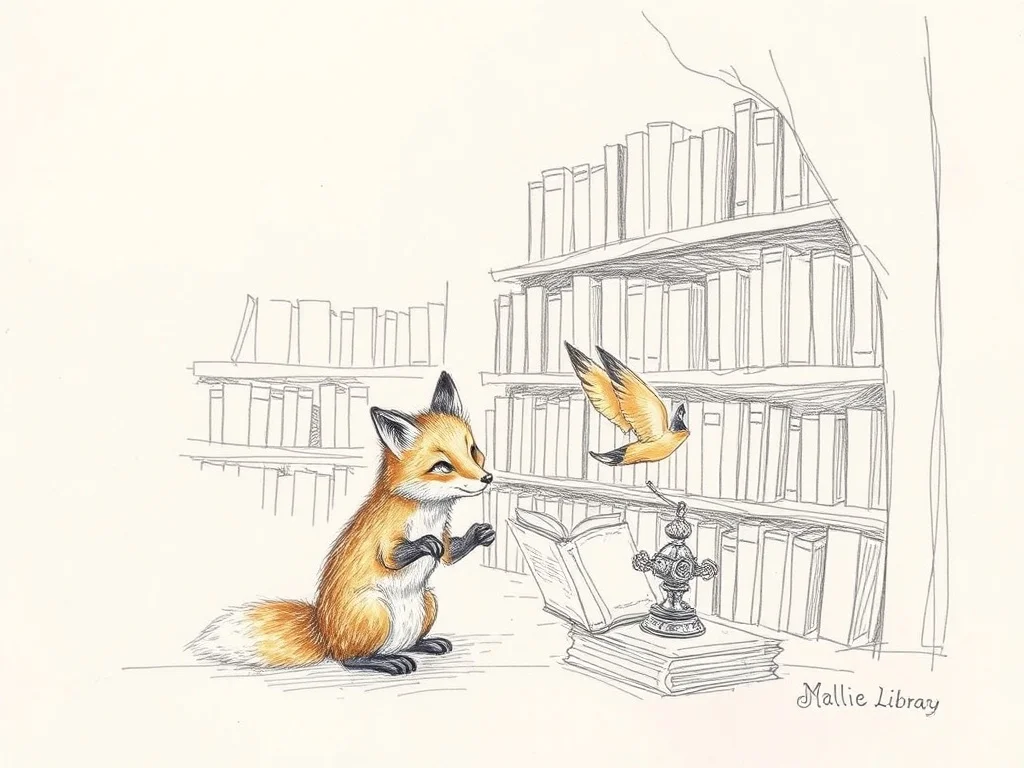
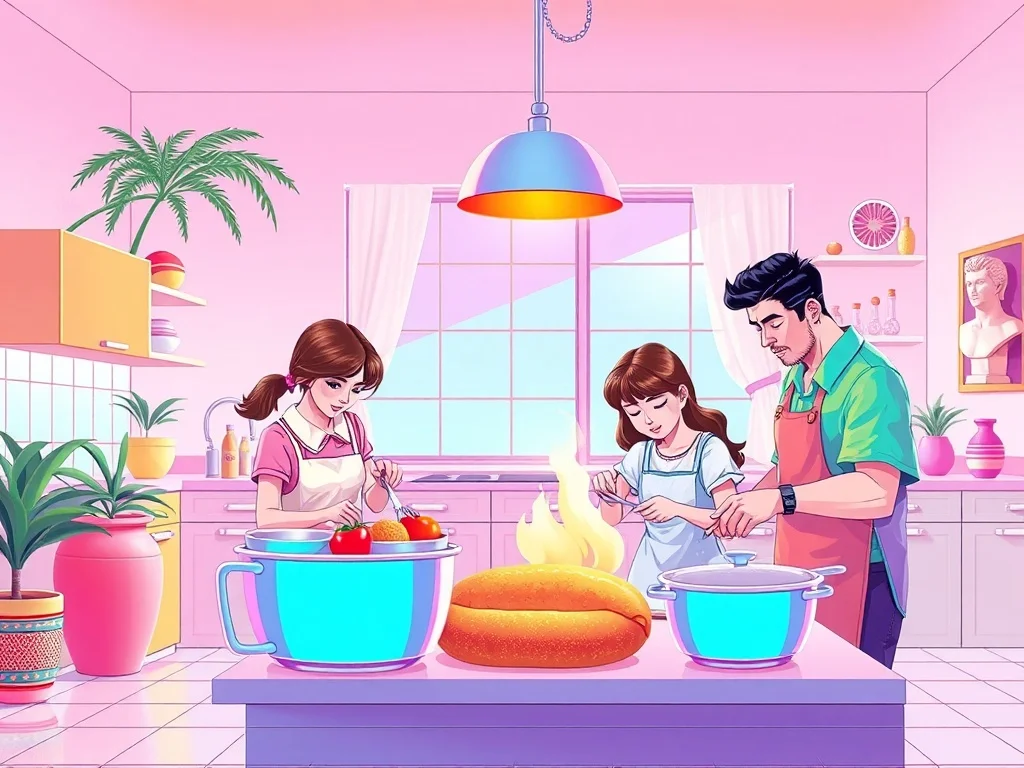
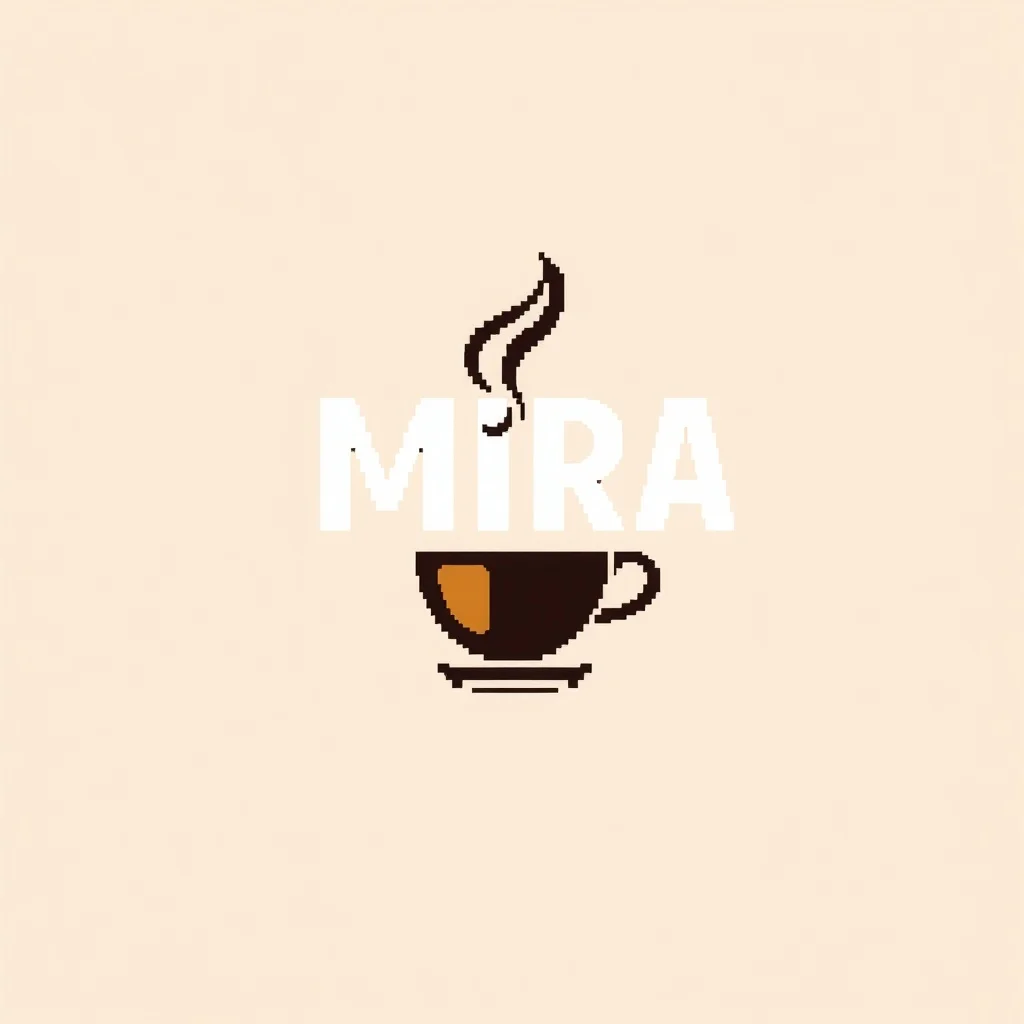
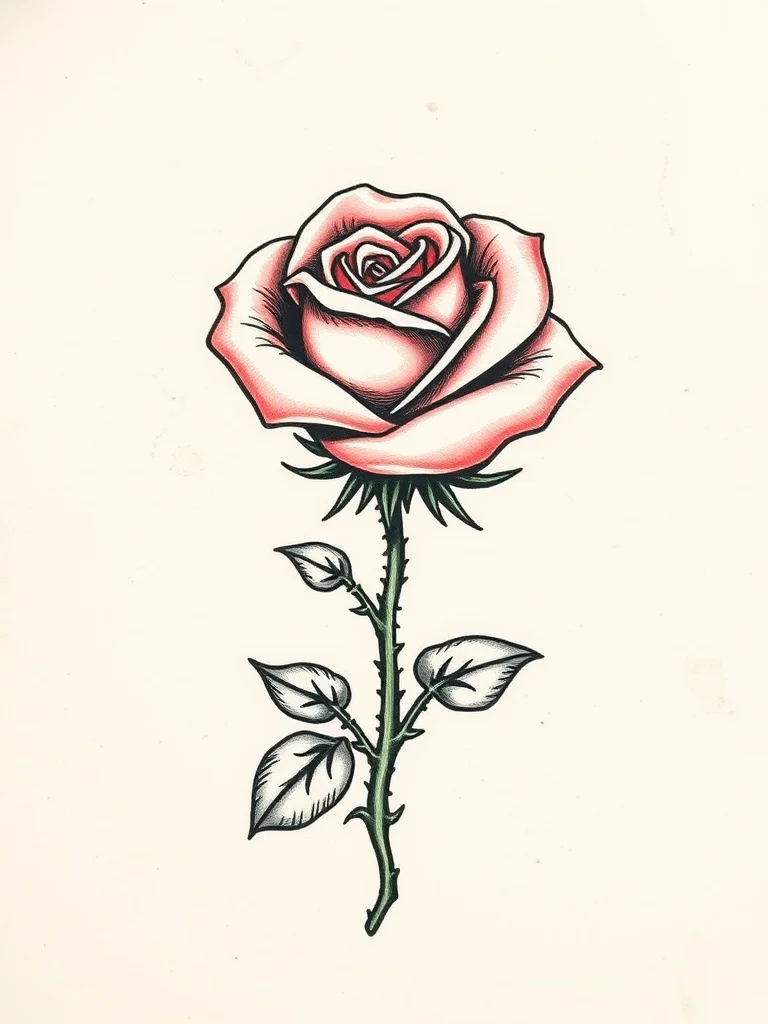
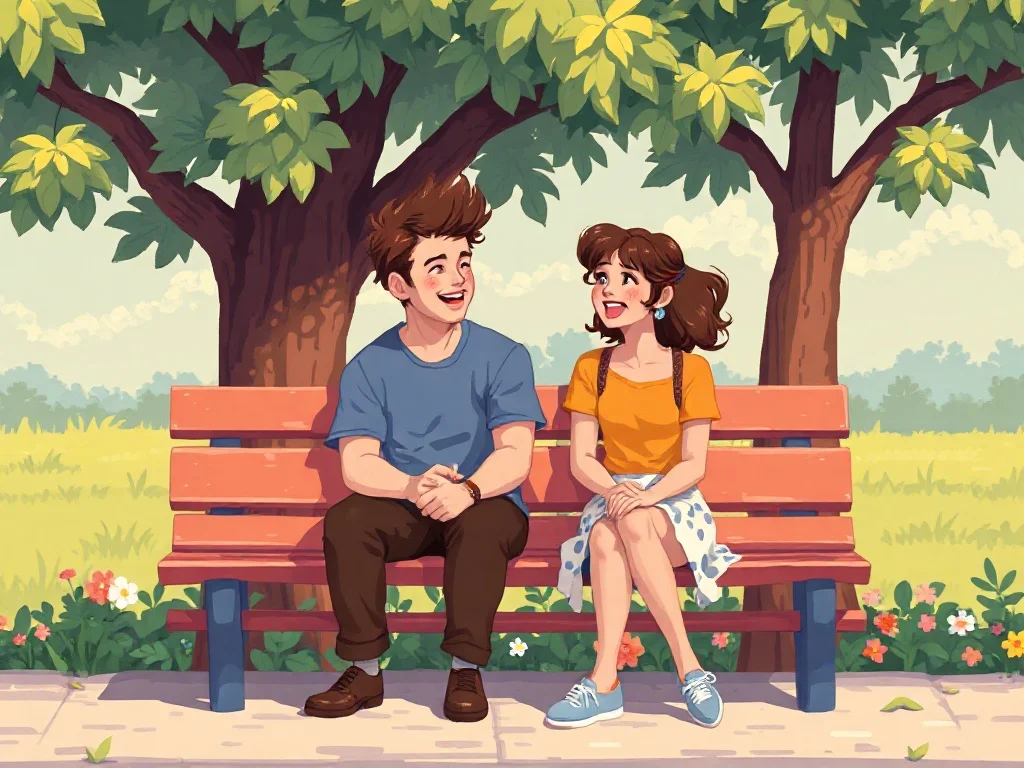
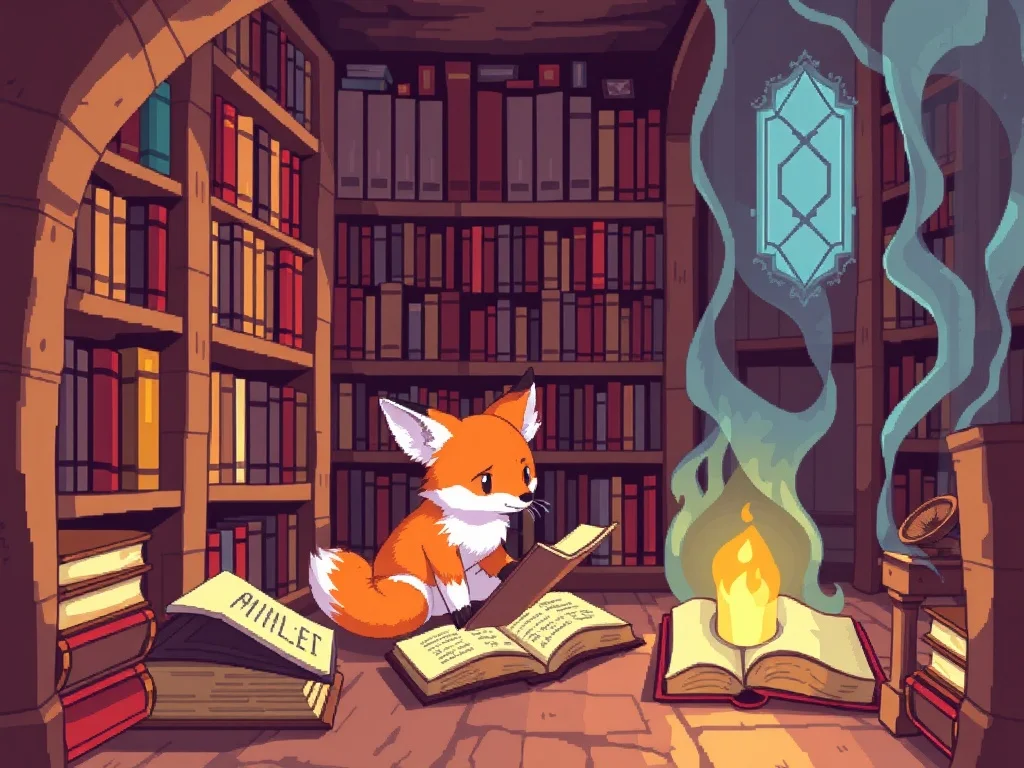
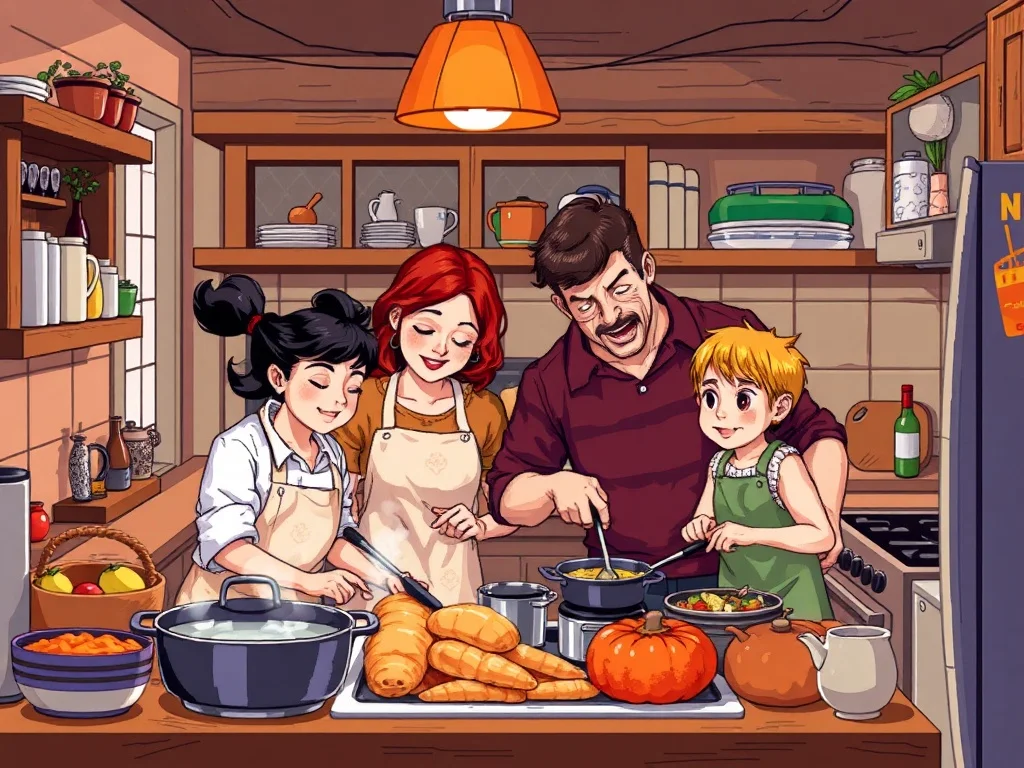
Pixel Art illustration examples
Generated with the same model and style. Click any to open the generator with that prompt loaded.
How to generate a pixel art illustration
- 1 Write your prompt
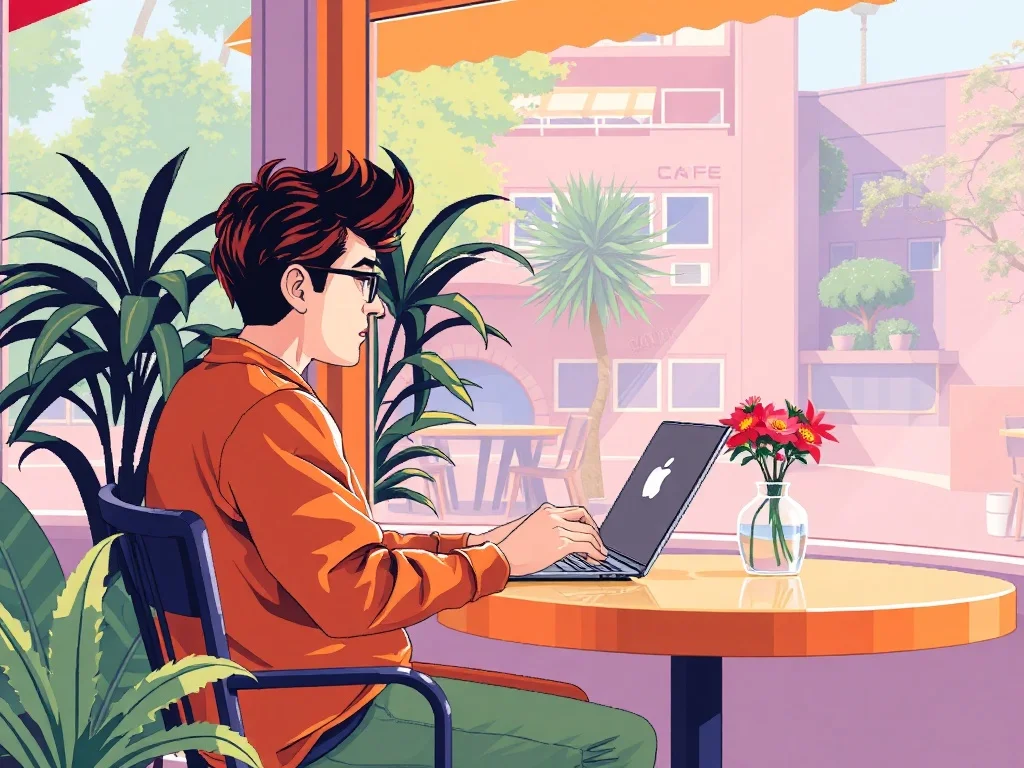
Describe what you want. Be specific. Example: "a person working remotely from a sunny cafe". The more concrete the description, the better the result.
- 2 Confirm the pixel art style
The style is already applied. You don't need to mention "pixel art" in your prompt unless you want to emphasize a specific aspect of it.
- 3 Generate
Click Generate. You'll get a illustration back in a few seconds. Each click costs 1 credit on the default model.
- 4 Iterate
Not quite right? Tweak the prompt and run it again. Even small changes (one new adjective, one different noun) can shift the output significantly.
Tips for better prompts
- · Describe the subject first, then the context. "A blue mug on oak wood" works better than "blue mug".
- · Keep subjects simple and iconic, because fine detail gets lost the moment everything snaps to a grid.
- · The pixel art style is already mixed into your prompt. You don't need to repeat "pixel art" in your text.
- · Think in nouns. For illustration, naming a specific material, mood, or setting moves the result more than piling on adjectives.
- · Stuck? Open one of the example prompts from the gallery and tweak a single detail.
Frequently asked questions
What makes a good Pixel Art illustration?
A strong illustration tells a small story at a glance, with clear figures, intentional composition, and a mood that matches the text beside it. In the pixel art style specifically, that means leaning into visible pixel grid, limited retro palette, and dithered shading rather than fighting them. renza already tunes the prompt in that direction, so your job is mostly to describe a strong subject and let the style do the rest.
Which model works best for a pixel art illustration?
For pixel art work, Flux Dev keeps the palette tight and the pixel grid crisp. You can switch models from the dropdown before you generate: Flux Dev is the fast all-rounder, Hyper Realistic is built for photoreal detail, Ideogram handles text inside the image, and Nano Banana 2 is the premium pick for the most demanding results. If you are just exploring, start on Flux Dev and only switch up if the pixel art look needs it.
Can I use my pixel art illustration commercially?
Yes. Every image you generate on renza is yours, including for commercial use such as client work, merchandise, print-on-demand, and resale. We don't watermark or claim ownership. The only limits: don't generate real, identifiable people without permission, and respect trademarks. Beyond that, the illustration is yours.
How long does each illustration take to generate?
Around 6 to 12 seconds on the default model (Flux Dev). Heavier models like Nano Banana 2 take 10 to 25 seconds. There's no queue, so you see the image as soon as it's rendered and can iterate quickly, which matters because most illustrations land after a few tries rather than the first one.
What if pixel art isn't the right style for my illustration?
You have 23 other styles to try, each tuned for a different look. Jump to the Illustration generator hub to browse them all, or check the "More generators in Pixel Art style" section below if you like pixel art but want a different category. You can also nudge the result with your own modifiers, like "pixel art but warmer" or "pixel art with more contrast".
Any tips before I generate my illustration?
Match the mood to your surrounding copy, and keep a consistent style across a set so your blog or app feels cohesive. And one pixel art-specific note: keep subjects simple and iconic, because fine detail gets lost the moment everything snaps to a grid.